Windows Prefetch forensics: a PECmd walkthrough
Prefetch is the closest thing Windows has to a receipt that a program ran. One file per executable, a run count, the last eight run times, and a list of what it touched on the way up. PECmd turns the whole folder into a CSV in a few seconds. The hard part is reading it correctly.
What Prefetch records, and where it lives
Windows watches the first ten seconds or so of an application's launch and writes a note of which files and directories it loaded, so the next launch can be read from disk more efficiently. That note is a Prefetch file. They live in C:\Windows\Prefetch, one per executable, named after the program in upper case with a hash appended: NOTEPAD.EXE-C5670914.pf.
Each file carries:
- The executable name, as it was at launch.
- Run count. How many times Windows has recorded that executable starting since the file was created.
- Run times. Windows 8 and later keep the last eight; Windows 7 and earlier keep only the most recent. Stored in UTC.
- Volume information. The device path, creation time and serial number of each volume the program loaded from. A program that ran from a USB stick leaves the stick's volume serial here.
- File and directory references. Everything loaded during that first stretch: DLLs, configuration files, and often the documents the program opened. This is why Prefetch for a text editor can tell you which file it was editing.
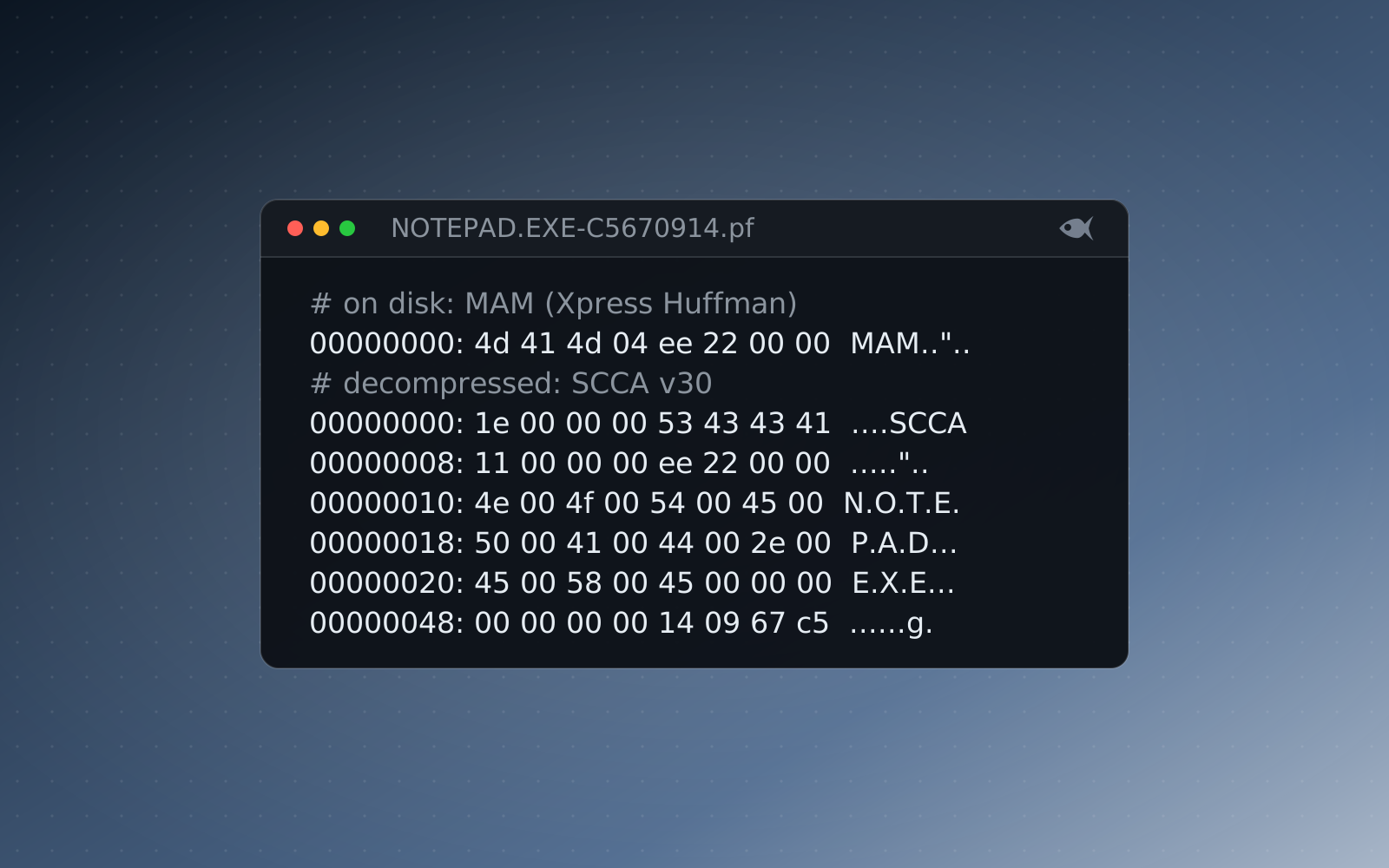
Windows 10 and 11 compress these files, so a hex editor shows MAM at the start rather than the SCCA signature. PECmd handles the decompression; you don't need to.
$ xxd -l 32 NOTEPAD.EXE-C5670914.pf
00000000: 4d41 4d04 ee22 0000 6177 88b8 bbcb cbcb  MAM.."..aw......
00000010: bbba bbcb bddb ddbb babb dbdd ddbc 7bc7 ..............{.MAM plus 04 marks XPRESS Huffman compression, and the next four bytes are the uncompressed size, little-endian. The SCCA header only appears after decompression.Parse the folder with PECmd
PECmd is one of Eric Zimmerman's free tools and needs the .NET runtime. Download it from ericzimmerman.github.io; the Tools & setup page lists it alongside the rest of the kit. One file at a time, to the console:
PECmd.exe -f "C:\evidence\Prefetch\NOTEPAD.EXE-C5670914.pf"
The whole folder, to CSV:
PECmd.exe -d "C:\evidence\Prefetch" --csv C:\out --csvf prefetch.csv
You get two files. prefetch.csv has one row per Prefetch file with the run count, the eight run times in their own columns, and the volume and file lists. prefetch_Timeline.csv flattens every run time into its own row, which is the one to drop into a timeline. Open either in Timeline Explorer, sort by the last run column, and the recent activity on the machine is on the screen in front of you.
Two flags worth knowing: --mp prints timestamps to the millisecond, which matters when you're lining up a run against a 4688 event, and -k "keyword1,keyword2" highlights any file reference that matches, so you can hunt for a document name across every Prefetch file at once.
Reading a row
Take a utility a student is asked about in First Look: What Ran on This Machine: one user profile, a downloaded tool, and the questions "was it run, how often, and when". The Prefetch row answers all three directly. The executable name is in the filename, the run count is a column, and the last run column is the most recent execution. The eight run times tell you the pattern: once at 02:14 is different from eight times across a working day.
Then read down into the references. The volume list tells you where it ran from. If the volume serial doesn't match the system drive, cross-check it against USBSTOR and MountedDevices in the SYSTEM hive; the Registry Explorer guide walks those keys. The file references often include the thing the tool operated on: an archive it compressed, a document it opened, a DLL it sideloaded. Prefetch is strongest when it points you to the next artifact.
Prefetch proves a program started. It doesn't prove who started it, what it did, or that it finished. Pair it with UserAssist, a LNK file or a process-creation event before you write "the user ran".
The misreads that cost marks
- File creation time isn't first run. The Prefetch file is created roughly ten seconds after the first launch, and only if Prefetch was enabled at the time. If the file was deleted and recreated, or the system was imaged from an upgrade, the creation time tells you about the file, not the program's history. Report the earliest stored run time as "earliest recorded run", not "first run".
- Modification time lags the last run. Windows writes the file after the launch window closes, so the file's modified timestamp is several seconds after the last run time stored inside it. Quote the internal timestamp.
- Prefetch can be off. Windows Server disables it by default. Client systems on SSDs sometimes have it reduced or disabled by policy or by tuning utilities. Check
HKLM\SYSTEM\CurrentControlSet\Control\Session Manager\Memory Management\PrefetchParameters\EnablePrefetcher: 0 is off, 3 is boot and application. An empty Prefetch folder is a finding about configuration, not proof that nothing ran. - The hash in the filename is the path, not the file. The eight hex characters are computed from the executable's full path (and, for hosts such as
svchost.exe,rundll32.exeandmmc.exe, the command line). The same binary run from Downloads and from Desktop produces two Prefetch files; a renamed copy produces another. A matching hash across two machines means the same path, not the same file. If a question asks for the file's hash, go to the file. - Run count counts starts, not sessions. A crash loop or a script that calls a tool twenty times inflates it. Read the run times for the actual pattern.
- The folder is capped. Windows 8 and later hold up to 1,024 Prefetch files and evict the oldest. On a long-lived machine, absence of a file for an old program means little.
- Times are UTC. Convert before comparing with anything a GUI showed in local time, and say which zone you're reporting in.
Where it fits
Prefetch sits in the execution family with UserAssist, Amcache, Shimcache and the 4688 event. On its own it answers "did this start, and when". With a LNK file or a jump list it answers "and what did they open with it". With event logs it answers "under which account". The EvtxECmd guide covers that last pivot. In Red Herrings, Windows cases ship real .pf files, written with the run counts and timestamps that the answer key is derived from, so PECmd reads them the same way it reads a live machine, and every student's run times and volume serials are their own. The Windows forensics pathway on the pathways page places this First Look as week two, right after the registry.
Run the free First Look cases or download the sample lab, or start the 30-day trial with sample cases to try, and generate a per-student case.